When Apple first introduced Apple Intelligence, many of us felt the initial desktop execution was a bit disconnected. A subtle glowing border around the screen and minor context-matching were nice touches, but desktop power users needed real productivity tools.
With the release of macOS Golden Gate, Apple has made significant structural changes. Rather than keeping AI as a passive widget floating in the background, this update pivots toward active, dedicated desktop workflows.
I spent the past week testing the two biggest overhauls in this update—the standalone Siri AI workspace app and the upgraded Image Playground—to see if they hold up in daily creative and technical work. Here is what’s actually new, where these tools excel, and where they still run into limitations.
1. The Dedicated Siri AI App: Built for Desktop Workflows
The most noticeable upgrade in macOS Golden Gate is that Siri is no longer restricted to a transient overlay that disappears the second you click away. It now functions as a full-fledged, standalone workspace app.

Persistent Threads & Cross-Device Sync
Having persistent conversation history directly inside a macOS app changes how you interact with on-device AI. In earlier versions, asking Siri to parse complex data meant keeping the response on screen before it faded out. Now, past queries are saved into structured threads that sync across your Apple ecosystem via iCloud.
If you are curious how this native interface stacks up against external conversational models, check out our detailed benchmark on Siri in macOS 27 vs Gemini.
On-Demand Visual Intelligence (Cmd + Shift + Space)
Screen perception has received a major upgrade with systemwide Visual Intelligence. Triggered via the Cmd + Shift + Space shortcut, you can drag a selection box over any portion of your active workspace.
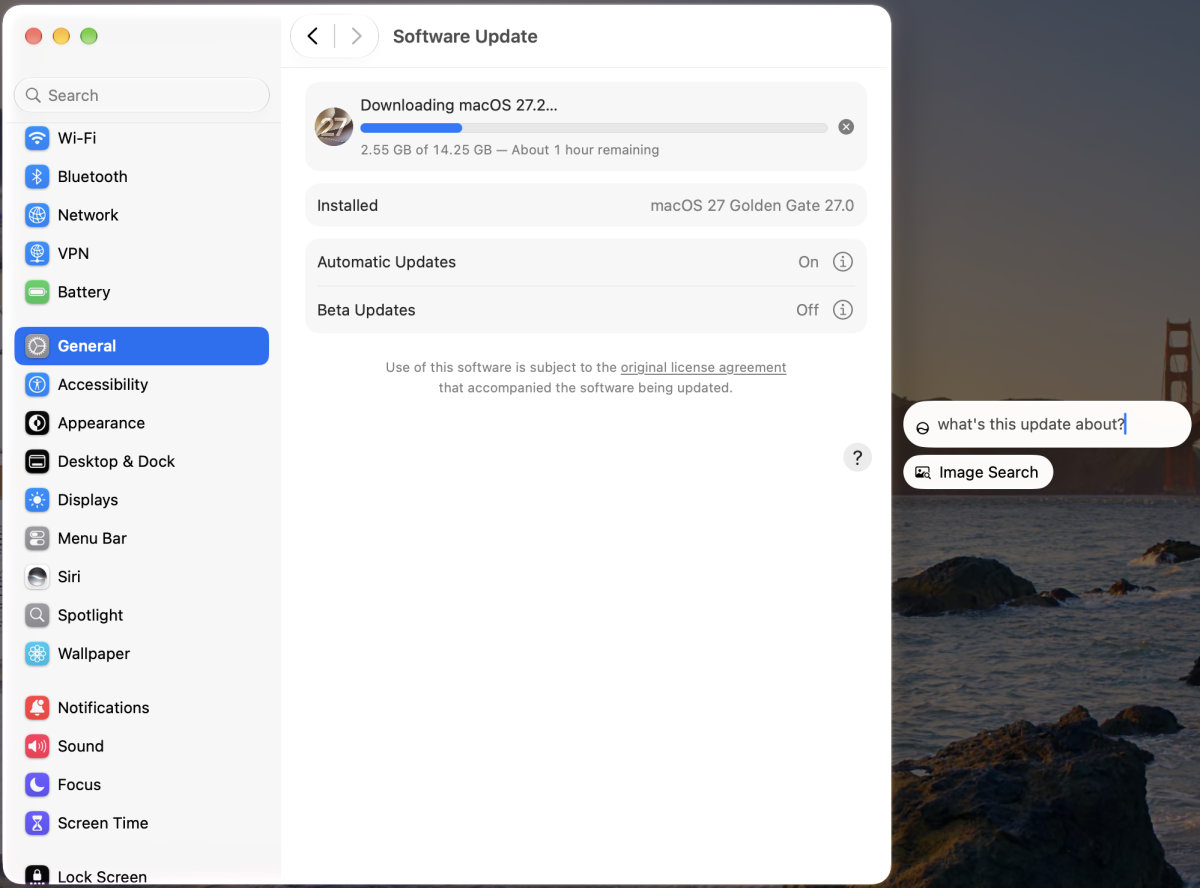
Instead of taking a full screenshot and manually pasting it into an LLM window, Siri reads the selected region in real-time.
- Text & Data Parsing: It cleanly isolates unstructured raw text, code snippets, or tabular data from active windows.
- System Actions: You can highlight a date or event on a web page and instruct Siri to immediately append it to Calendar or Reminders.

The Real-World Caveat: While it excels at standard UI text, DOM elements, and high-contrast visuals, it still occasionally stumbles on complex live analytical charts (like reading specific data points on Google Search Console graphs) without manual clarification.
2. Image Playground: Advanced Asset Creation & Localized Editing
Image Playground previously felt like a casual sticker generator built primarily for Messages and casual notes. In macOS Golden Gate, Apple reworked the underlying generation engine to turn it into a practical tool for creators.

Photorealism & Expanded Canvas Controls
The biggest complaint about earlier iterations was the restriction to cartoonish vector styles. The updated engine introduces photorealistic rendering alongside expanded canvas aspect ratios.
For technical bloggers and visual creators who need fast, royalty-free hero images or content thumbnails, this eliminates the need to leave the desktop environment for basic image drafting.
Subject Preservation & Regional Infill
The standalone app now supports precise regional masking. You can upload an existing photograph, lock the primary subject (such as a person or a product), and use a brush tool to adjust only the surrounding environment.
Whether you want to swap a cluttered home office background for a clean studio environment or adjust lighting conditions, the subject retention algorithms preserve facial features and edges remarkably well.
For developers who prefer integrating custom generative solutions programmatically over GUI apps, we have also compiled a roundup of the best free AI APIs for developers in 2026.
3. How It Fits Into Daily Workflows
If you have already made the jump to Apple’s latest desktop update, you know that performance gains extend well beyond synthetic benchmarks. I shared my initial impressions in my piece on why I upgraded to macOS 27 Golden Gate on day one and why my workflow isn’t looking back.
Adding a dedicated AI space to the desktop brings three clear workflow improvements:
- Fewer App Switches: Querying live screen context via simple shortcuts keeps you focused in your main application rather than managing multiple browser tabs.
- On-Device Privacy Speed: Localized processing on M-series Apple silicon ensures image edits and screen queries process instantly without sending sensitive screen buffers to third-party cloud servers.
- Native Automation: Natural language shortcuts mean you can build multi-step automated workflows without writing raw scripts.
Getting Access: A Quick Setup Note for First-Time Users
If you are opening your Mac expecting these features to be available right out of the box, keep in mind that Apple still gatekeepers the new experimental Siri workspace and Image Playground. To use them, you must manually turn on the feature in System Settings > Apple Intelligence & Siri and click Try Siri AI (Beta).

Because the system downloads localized AI models directly to your M-series Apple silicon chip, approval isn’t instantaneous. Personally, I had to wait a couple of days after registering before my account was approved. If you find yourself waiting a day or two, don’t worry—that is completely normal and well worth the brief wait. Once you receive the system notification that access is granted, you can immediately begin testing the features across your daily desktop workflows.
The Verdict
The macOS Golden Gate update successfully transitions Apple’s AI suite from novelty status to a functional desktop asset. While power-users working with heavy dataset analysis will still rely on specialized web models or terminal scripts, having a dedicated Siri workspace app paired with localized visual editing inside Image Playground makes the Mac environment feel significantly more integrated.
If you haven’t opened the dedicated Siri app or tried the updated region selection tools yet, they are worth integrating into your daily routine.
Check out this video covering 10 Small But Useful AI Features In macOS Golden Gate to see visual demonstrations of these new visual intelligence shortcuts and native workflow improvements in action.