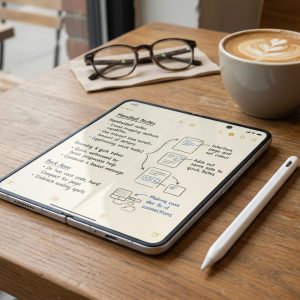
When Apple finally unveiled the OLED touchscreen MacBook Pro, my first instinct wasn’t to check the benchmark numbers—it was to look at the Apple Pencil sitting on my desk and wonder if my daily workflow was about to merge into a single device. Apple quickly shut down that dream in its launch specs, confirming that neither the Apple Pencil Pro nor the USB-C model works on the new Mac display.
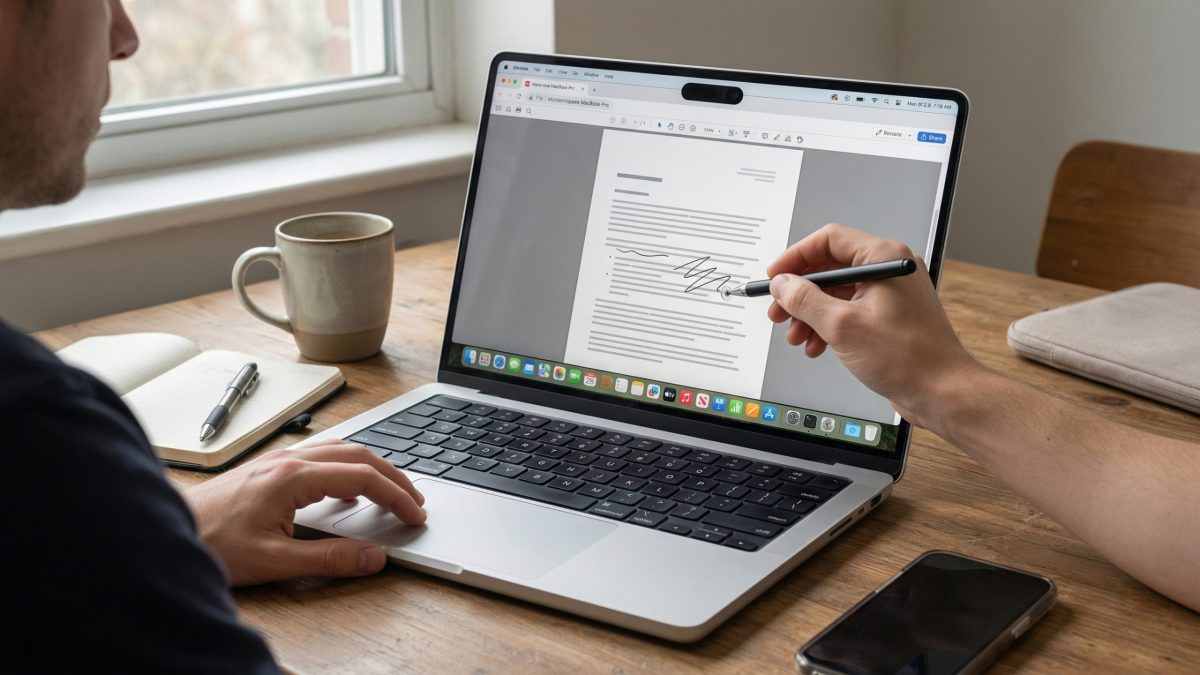
Testing a third-party capacitive stylus on the touchscreen MacBook Pro: while basic tapping and signing work, lack of active palm rejection and Apple Pencil protocol makes drawing difficult.Still, having a responsive OLED touch panel right in front of you practically begs for a stylus. If you are like me and hate smudging a glossy screen with your fingers while marking up PDFs or sketching quick wireframes, the obvious next question is what happens when you grab an alternative pen. I decided to test different third-party styluses on the new panel—and between screen wobble, missing palm rejection, and surprising budget wins, the reality is very different from using an iPad.
Why Apple Kept the Apple Pencil Off the Touchscreen MacBook Pro
Before grabbing third-party gear, it helps to understand why your existing stylus won’t register a single dot on the screen.Even though Apple introduced touch-optimized controls when I upgraded to macOS 27 Golden Gate on day one, the operating system still treats touch input as an extension of multi-touch trackpad gestures rather than an active drawing canvas.
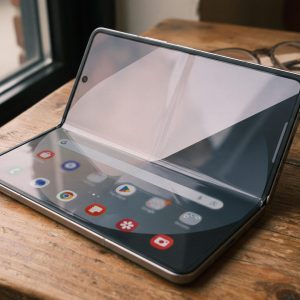
Unlike an iPad Pro—or even the foldable screen we broke down when looking at whether the iPhone Duo supports Apple Pencil Pro—the touchscreen MacBook Pro lacks the dedicated active digitizer layer required to communicate with Apple’s proprietary stylus protocol. Apple deliberately built the hinge to stay rigid during finger taps, avoiding the 360-degree convertible design used by Windows 2-in-1 laptops. Without a tablet mode, adding inductive charging coils and hover sensors inside a slim aluminum lid simply didn’t align with how Apple expects people to use a Mac.
Testing Third-Party Styluses on the MacBook Pro: 3 Real-World Outcomes
Since the OLED display uses standard capacitive touch sensing, any stylus that mimics a human finger will technically interact with the screen. However, “technically working” and “actually usable” are two completely different things.
1. Basic Capacitive Rubber-Tip & Mesh-Tip Styluses
These inexpensive $10 pens—like basic fiber-tip models from Adonit—work out of the box with zero Bluetooth pairing.You can tap menu bar icons, scroll through long spreadsheets, and sign basic PDFs in Preview without leaving fingerprints all over the glass.
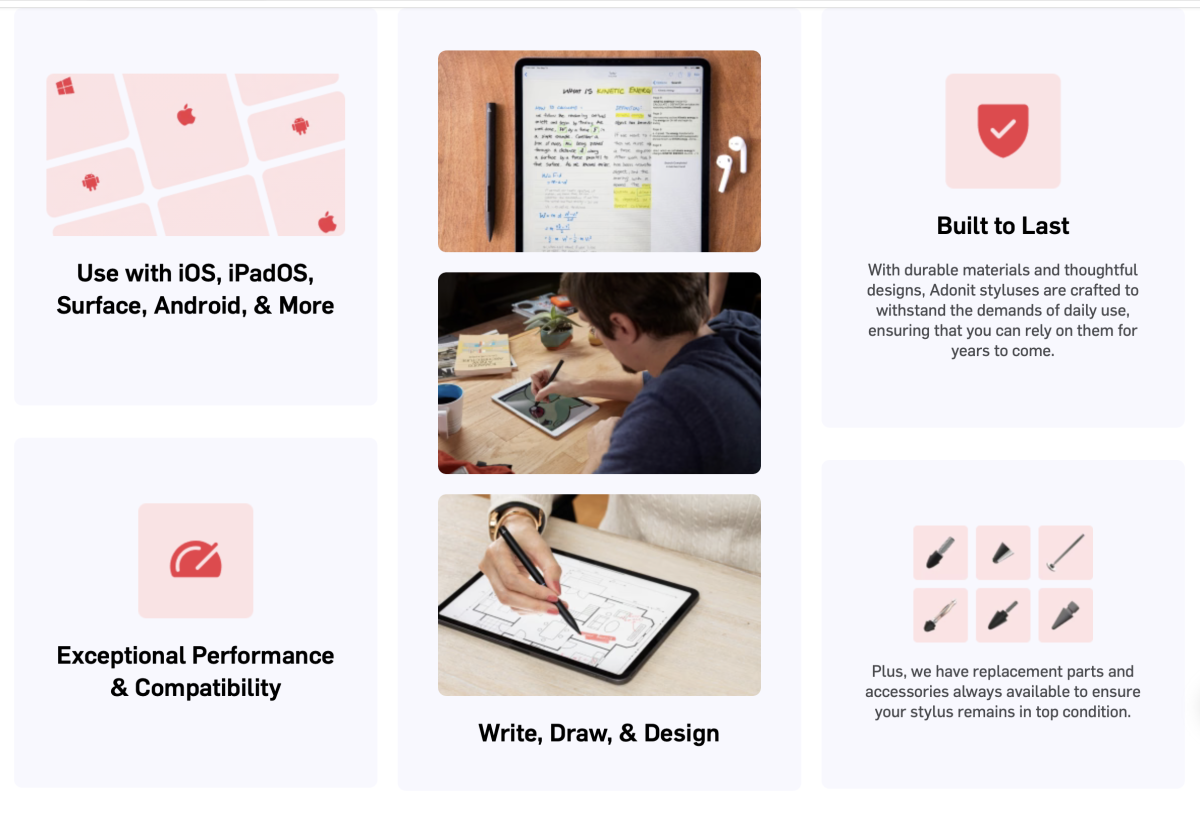
Adonit universal styluses work across multiple capacitive touchscreens without Bluetooth pairing, making them handy for basic navigation—though macOS still lacks active palm rejection.The catch hits the second you try to write small text. Because the tip has to be wide enough to simulate a fingertip’s surface area, precision is roughly the same as writing with a dull crayon. There is zero pressure sensitivity, and the broad rubber nib blocks your view of exactly where your line starts.
2. Disc-Tip Precision Styluses
Clear plastic disc-tip pens give you a much better line of sight for annotating documents or circling UI bugs in screenshots. On the MacBook Pro’s 120Hz ProMotion OLED panel, tracking feels noticeably smoother than it did back when I compared older laptops like the MacBook Air M2 against the ASUS Zenbook 14 OLED.
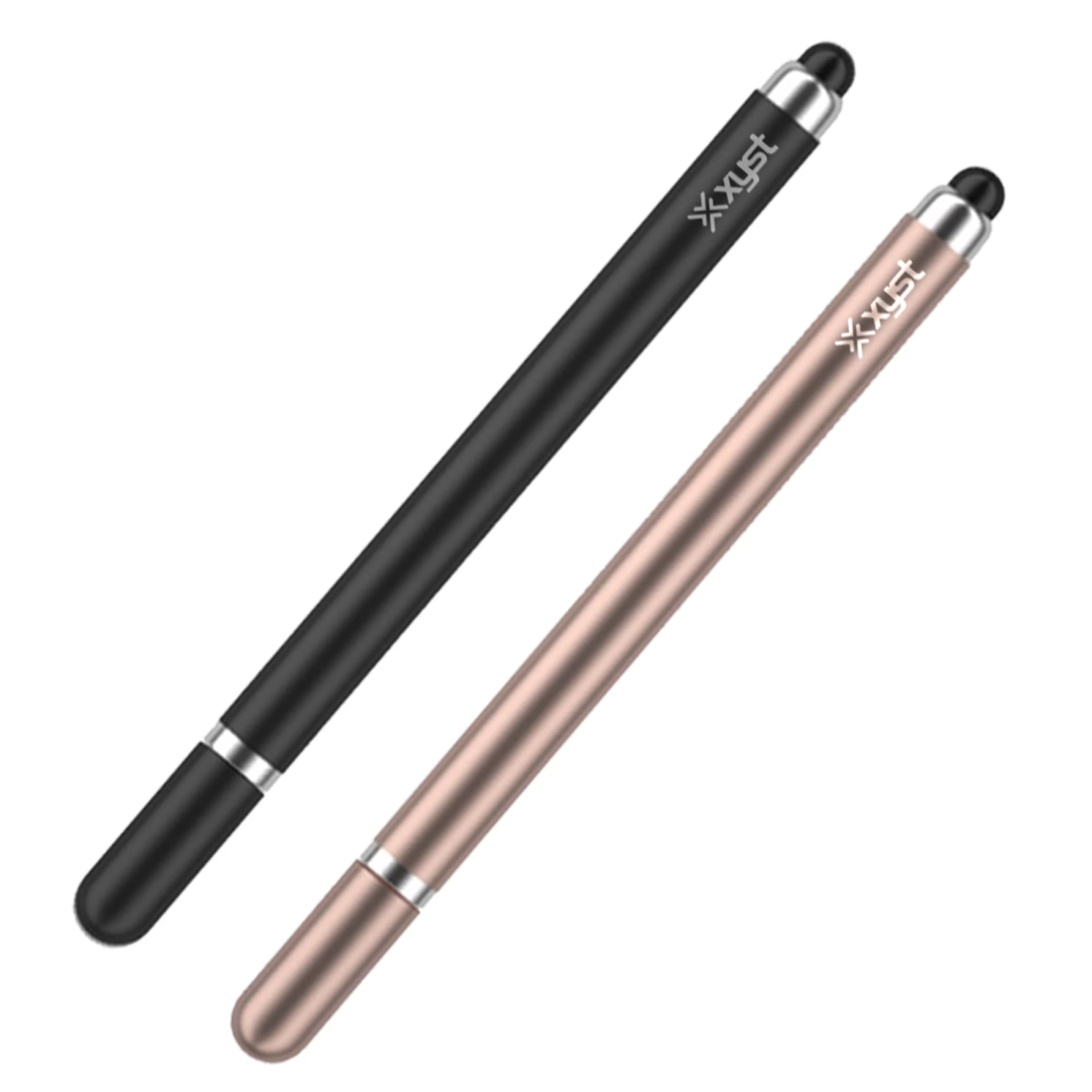
Precision disc-tip styluses (like these dual-ended models) offer a clear line of sight for basic Mac document markups, but still lack palm rejection on the MacBook Pro touchscreen.However, two physical annoyances show up fast:
- Hinge bounce: Even with Apple’s reinforced hinge, tapping repeatedly with a rigid disc tip causes slight screen wobble unless you brace the top corner of the display with your other hand.
- Zero palm rejection: Because macOS treats the stylus tip identically to your skin, resting the side of your hand on the screen immediately triggers accidental clicks, drags, or Mission Control gestures. You have to hover your entire arm in mid-air while writing, which gets exhausting after two minutes.
3. Active Universal Capacitive Pens (USB-C Rechargeable Fine-Tip)
Battery-powered universal styluses with 1.5mm fine tips—the kind often marketed as “universal iPad/Android pens”—also register touches on the MacBook Pro without pairing. While the fine tip looks promising, the lack of a synchronized digitizer inside the Mac screen means diagonal lines show a slight “stair-step” jitter if you draw slowly, and you still don’t get tilt shading, pressure curves, or palm rejection.
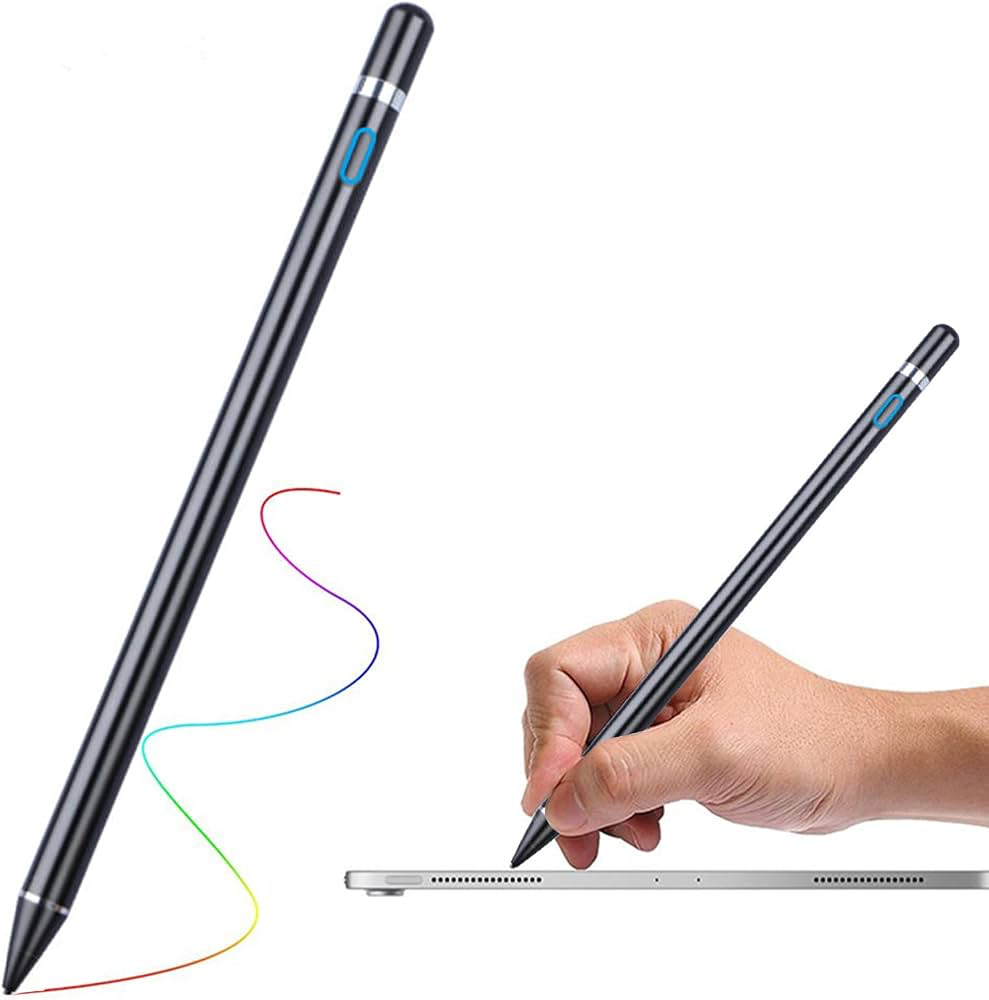
Rechargeable fine-tip universal capacitive styluses register on the touchscreen MacBook Pro without pairing, though diagonal strokes show slight jitter and lack pressure sensitivity or palm rejection.Stylus Options Compared on the Touchscreen MacBook Pro
If you are trying to decide whether to buy a cheap screen stylus or stick to dedicated drawing hardware, this breakdown shows what actually works on macOS:
| Stylus Type | Works on Touchscreen MacBook Pro? | Palm Rejection | Pressure & Tilt | Best Real-World Use Case |
|---|---|---|---|---|
| Apple Pencil Pro / USB-C | No (Incompatible hardware) | N/A | N/A | None—save your money |
| Mesh / Rubber-Tip Capacitive Pen | Yes (Instant, no pairing) | No | No | Tapping menus, scrolling, smudge-free navigation |
| Clear Disc-Tip Stylus | Yes (Instant, no pairing) | No | No | Quick PDF signatures and rough screenshot markups |
| Active Fine-Tip Universal Stylus | Yes (Basic touch only) | No | No | Short handwritten notes while hovering your wrist |
| Wacom Drawing Tablet / iPad via Sidecar | Yes (External surface) | Yes | Yes | Serious illustration, photo retouching, and long note-taking |
The Better Workarounds If You Actually Need Pen Input on a Mac
After spending a week trying to force a stylus onto the MacBook Pro’s vertical screen, I realized that ergonomic physics is an even bigger hurdle than software limits. Reaching up to write on a vertical laptop display for twenty minutes gives you “gorilla arm” fatigue almost immediately.
If pen precision is a non-negotiable part of your workflow, two setups beat any third-party touchscreen stylus:
- Use an iPad with Sidecar: If you already own an iPad and Apple Pencil, enabling Apple’s Sidecar feature turns your tablet into a pressure-sensitive, palm-rejecting drawing display flat on your desk while your MacBook Pro runs full desktop apps above it.
- Pair a Compact External Pen Tablet: A small wired or Bluetooth pad from Wacom gives you full tilt, pressure sensitivity, and customizable shortcut buttons without smudging your OLED MacBook screen or straining your shoulder.
Frequently Asked Questions
No. Apple Pencil requires a specialized active electromagnetic/capacitive digitizer layer built directly into the display assembly. Because that hardware is physically absent from the 2026 touchscreen MacBook Pro, a software update cannot enable compatibility.
Soft microfiber mesh tips and clean silicone nibs are safe for the glass, provided you wipe away dust particles first. Avoid hard plastic or worn-down fine-tip styluses—especially if you ordered the nano-texture display option, as abrasive tips can burnish the matte etching over time.
No. Palm rejection on Mac applies only to the built-in Force Touch trackpad while typing. The touchscreen cannot distinguish between the side of your palm and a capacitive stylus tip.
Final Verdict
Even without Apple Pencil support, having a touchscreen on the MacBook Pro is genuinely useful for quick UI taps,pinching timelines, and scrolling through reference docs without reaching for the trackpad. Just don’t buy a third-party stylus expecting an iPad replacement—keep a $10 mesh-tip pen in your bag for smudge-free signatures, and leave real drawing or note-taking to Sidecar or a dedicated pen tablet.